Organizational Details
Use this function to update and save the organization's information.
| The Organization Details are created upon initial set up by Virima. While the Organization cannot be deleted, the information can be modified. |
In the main window, click Admin > Organizational Details > Organizational Details. The Organizational Details window displays.
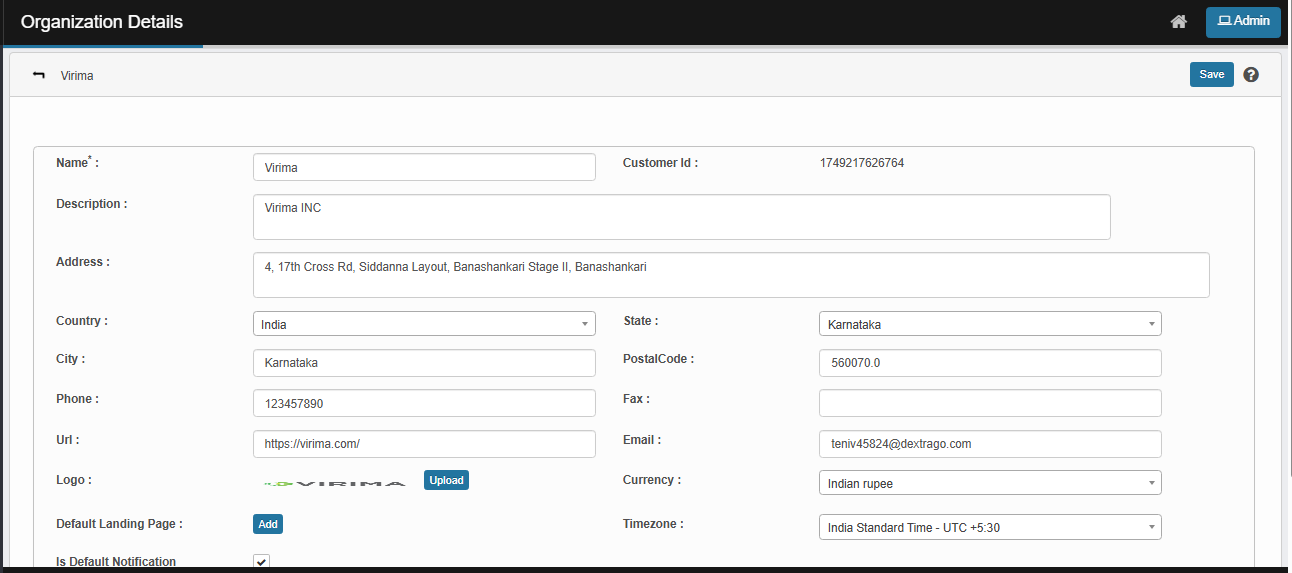

 New Organizational Details
| 1. | Enter the applicable information in the provided fields, referring to the table below. |
| 2. | When all selections/entries are made, click Save. |
Organizational Details Fields
| Field | Description | ||||||||||||
|---|---|---|---|---|---|---|---|---|---|---|---|---|---|
| Name | Name of this organization. | ||||||||||||
| Customer ID | An ID number assigned by the system, which cannot be edited. | ||||||||||||
|
Description |
Details about the organization. |
||||||||||||
|
Location Info |
Details about the organization location such as Address, Country, State, City, Postal Code, Phone, Fax, URL, and Email. |
||||||||||||
|
Logo |
Configures the logo displays on reports, email messages, application log in page, password page, and in web page header.
|
||||||||||||
|
Currency |
Specifies the currency type used for cost center information. Click the drop-down list and select a currency from those shown. |
||||||||||||
|
Default Landing Page |
Configures a default landing page.
|
||||||||||||
|
Time Zone |
Specifies the time zone for this organization. Click the drop-down list and select a time zone from those shown. |
||||||||||||
|
Is Default Notification Enabled |
Disables/enables the global functionality to turn email notifications on/off. When enabled, Virima notifications can be sent by users throughout the system.
|
Edit Organizational Details
| Not all functions include an option to edit record line items shown in the main window. |
| 1. | Navigate to the Organizational Details page. |
| 2. | Make the necessary modifications. |
| 3. | Click Save or Add, as applicable. |
Delete Organizational Details
Organizational Details cannot be deleted, only edited.